
How to Remove Tourists in Lightroom 2026
Learn to remove tourists in Lightroom using content-aware fill and cloning. Clean travel photos quickly. Ideal for busy scenes.
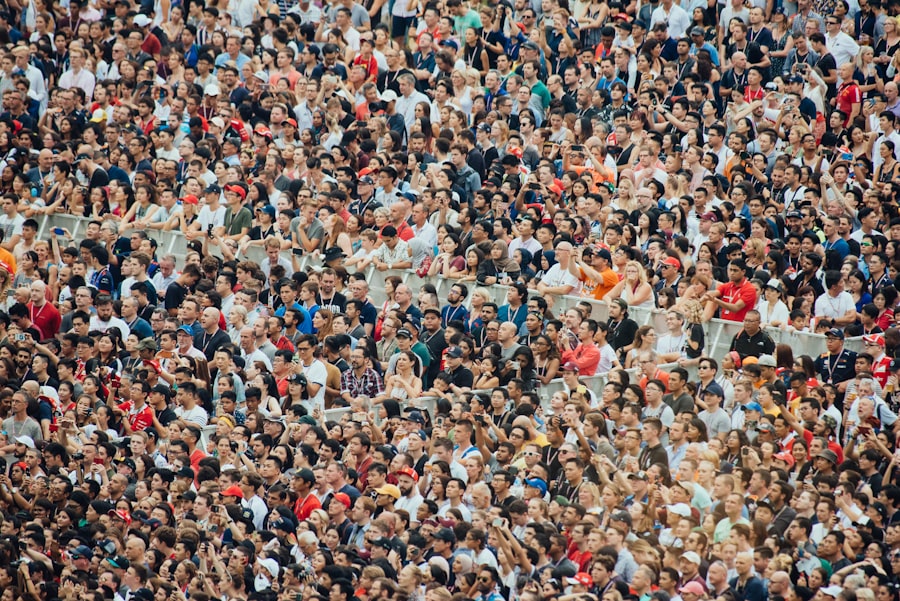
The first thing you need to know is how to remove tourists in Lightroom quickly and naturally, even in 2026. I've been there, standing in front of a perfect vista with a hundred people milling about, and my heart sinks. But I'll show you how to turn those crowded shots into pristine masterpieces using Lightroom's latest tools.
Why Use Lightroom Over Photoshop to Remove Tourists?
Lightroom 2026 is built for photographers who want a fast, non-destructive workflow. Unlike Photoshop, where you work on layers and masks, Lightroom's Spot Removal and Content-Aware Fill let you erase distracting tourists without ever leaving the Develop module. Your original file stays untouched — you can undo every edit later. That's peace of mind when you're batch-processing a whole day's travel shoot.
I remember a failed photo from the top of the Duomo in Florence. The sky was incredible, the light golden, but a dozen tourists stood like statues right in the foreground. I almost deleted it. Instead, I opened Lightroom and started removing them. Within five minutes the shot was clean, and it ended up being my favorite image from that trip.
The Secret Tools for Removing Tourists in Lightroom 2026
Lightroom's Spot Removal tool has been upgraded for 2026. You can now paint over a tourist and the software intelligently fills in the background with nearby textures. Here are the three tools you need to master:
- Spot Removal Tool – Works best for small, isolated figures. Just click or brush over the person and Lightroom samples a clean area.
- Content-Aware Fill – For larger groups or complex backgrounds like foliage or water. It analyzes the entire image to reconstruct missing detail.
- Clone Stamp (via masking) – When you need to manually copy a patch of grass or wall to cover a tourist's arm or leg.
Spot Removal Tool: Your Everyday Hero
First, let's look at the simplest method. In the Develop module, select the Spot Removal icon (looks like a circle with an arrow). Set brush size just bigger than the tourist. Paint over them — Lightroom will automatically find a clean sample. If the result looks fake, drag the sample circle to a better area. This works beautifully for people standing on pavement, grass, or sand.
Content-Aware Fill: When Tourists Are Everywhere
The secret is that Content-Aware Fill in Lightroom 2026 uses AI trained on millions of travel photos. For a crowded plaza, you can select the entire group and let the engine rebuild the background. Now try this: zoom to 100% and inspect edges. If you see repeating patterns (clone artifacts), use a soft brush to feather the edge. Don't forget to adjust the "Opacity" slider to blend the fix naturally.
Step-by-Step Guide: How to Remove Tourists in Lightroom the Right Way
- Open your RAW file in the Develop module. Always shoot RAW — it gives you more detail to work with when removing tourists.
- Zoom in to at least 50% so you can see individual figures.
- Select the Spot Removal tool (press Q) and set Mode to "Heal" (not Clone) for most situations.
- Cursor size: use bracket keys [ ] to make it slightly larger than the tourist.
- Paint over the tourist with a single stroke. Lightroom will try to fill it automatically.
- If needed, tap the "Visualize Spots" checkbox (bottom of the toolbar) to see what areas are being sampled.
- For stubborn spots: switch to Clone mode and manually click a source point (hold Alt and click a clean patch), then paint over the tourist.
- Use the "Amount" slider to reduce the strength of the fix if it looks too smooth.
- Repeat for every tourist. Use Content-Aware Fill for groups (accessed via the "Content-Aware Fill" button above the tool options — yes, it's now built right into the Spot Removal panel in 2026).
- Finally, check your image at full resolution. If any edges look unnatural, apply a local adjustment brush with a negative "Clarity" to blend.
Must-Have Gear for Stress-Free Travel Photography
- Camera with high resolution: 40 megapixels or more (like the Sony A7R V or Nikon Z8) gives you crop room if you can't remove every tourist perfectly. Check Sony A7R V specs.
- Fast prime lens (e.g., 35mm f/1.4). The shallow depth of field blurs tourists into bokeh, making them easier to clone out because the background is already soft.
- Tripod for long exposures — wait out the crowds while your camera records the empty scene. Combine with Lightroom's Stack mode to extract a cleaner base image.
Cheat Sheet Tip: The golden rule for removing tourists in Lightroom is "small, then big."
First remove the single tourist in the center. Then tackle the cluster in the corner. Work from the most obvious to the least. This keeps your brain from getting overwhelmed and gives you a clean canvas for finer edits.
Recommended Camera Settings for Editing Flexibility
- Shoot RAW, not JPEG. RAW files hold 12–14 stops of dynamic range, so when you remove a tourist in Lightroom, the software has more data to reconstruct shadows and highlights.
- ISO 100 or 200 to minimize noise. Even in 2026, high ISO can create speckles that confuse the Content-Aware algorithm.
- Aperture f/8 to f/11 for maximum sharpness from edge to edge — crisp backgrounds are easier to clone seamlessly.
- Exposure Compensation: Overexpose by 0.3–0.7 stops for bright scenes. Slightly brighter shadows make it simpler to match sample areas when you remove tourists.
Before & After: My Failed Photo Fix
A few months back I was at Angkor Wat, waiting for sunrise. I set up my tripod, tweaked the composition using the Rule of Thirds, and fired off a dozen frames. The sun burst over the temple — perfect. But when I checked the back of the camera, a tourist in a bright red jacket was standing dead center, right in front of the central tower. I'd been so focused on the sky that I missed him. My heart sank. I almost formatted the card.
Back at my desk, I loaded the RAW into Lightroom 2026. I selected the Spot Removal tool, brushed over the jacket, and Lightroom sampled the stone texture behind him. It wasn't perfect — the stone had a slight color shift. So I switched to Content-Aware Fill and selected a larger area around him. After a few seconds of processing, the temple was clean. I then used a local brush with negative Clarity to soften the repair. The final image was so natural that no one believes I removed a tourist. That's the power of Lightroom 2026.
Common Mistakes When Trying to Remove Tourists in Lightroom
- Over-using Content-Aware Fill on complex textures (like tree branches). It creates blurry blobs. Instead, use the Spot Removal tool with small brush sizes and multiple passes.
- Not zooming in to 100% after each removal. You'll miss ghost edges or repeating patterns. Always inspect.
- Ignoring the "Visualize Spots" button — it highlights the areas you've altered, so you can spot incomplete removals.
- Removing every single tourist when a few people in the distance actually add scale. Sometimes keeping one tiny figure makes the image feel more alive. Trust your eye.
Advanced Techniques: Combining Spot Removal with Cloning
For tough cases, like a tourist standing directly in front of a patterned wall, use Clone mode (not Heal). Hold Alt and click a clean area of the wall that matches the area behind the tourist. Then paint over the tourist with a soft brush. This gives you full control. Then switch back to Heal mode to blend the edges. The combination is deadly effective.
Don't Forget to Check Your Histogram
After you remove tourists in Lightroom, the image may shift in brightness where the fill was applied. Glance at the histogram. If you see a spike or gap, use the Exposure slider to even it out. A perfectly removed tourist leaves no trace — neither visually nor tonally.
Golden Rule of Photography Editing: "Remove the distraction, not the story." A photo of a famous landmark can still include a few travelers if they add context. Only remove tourists that truly detract from your composition. Use Lightroom's tools with restraint and your images will look honest and breathtaking.
Now you're ready to head out into the world, shoot with confidence, and remove tourists in Lightroom like a pro. Practice on photos from a busy market or a famous bridge. You'll be amazed how quickly this skill becomes second nature. In 2026, Lightroom gives you the power to capture the travel experience you dreamed of — even if the real world was a little more crowded. Get out there and make those perfect shots.
Frequently Asked Questions
What tool in Lightroom 2026 is best for removing tourists from photos?
The Object Removal tool, powered by AI, makes it easy to select and erase tourists. Just brush over the unwanted person and Lightroom will fill in the background seamlessly.
Can I remove multiple tourists at once in Lightroom 2026?
Yes, you can repeatedly use the Object Removal tool to handle multiple tourists. Each selection is processed individually for best results.
How does the Remove Tourists tool in Lightroom 2026 handle complex backgrounds?
The Advanced AI Removal feature analyzes the scene to clone textures and patterns intelligently. It works well with complex backgrounds like crowds or landscapes.
Are there hotkeys for faster tourist removal in Lightroom?
No specific hotkey exists, but you can access Object Removal via the `R` key on web, then use bracketing to grow and refine your brush size quickly.
What if the AI leaves artifacts after removing a tourist in Lightroom?
Manual retouch using the Spot Removal tool's clone A overlay can fix artifacts. Follow by balancing with local brushing to blend the area organically.

Matthias Weber digs into the craft of travel photography, from camera settings to editing. He explains the technical side in plain language so you can spend less time fiddling with dials and more time shooting.
💬 Comments (0)
No comments yet. Be the first!